
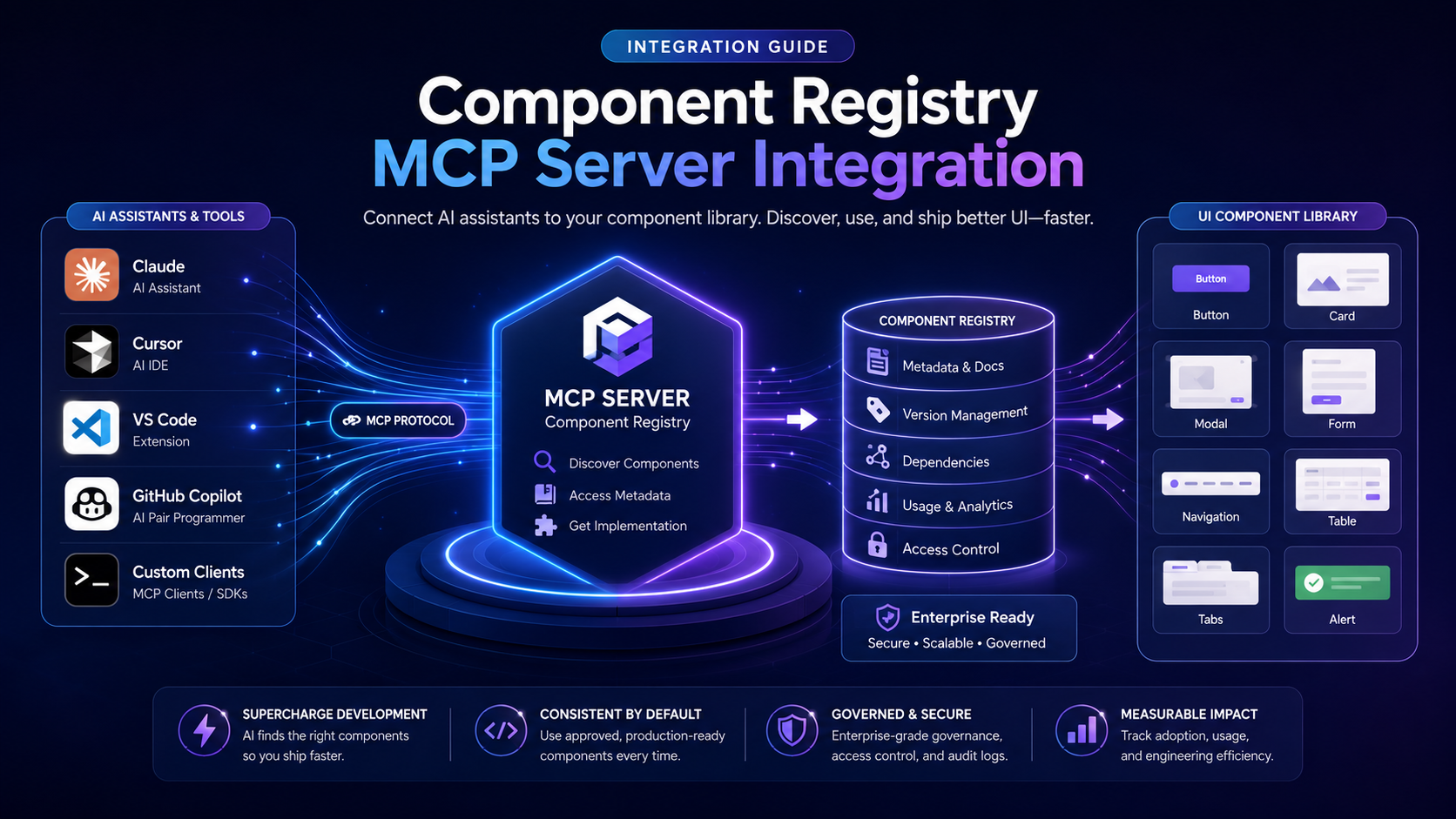
Setup Guide for Xperience by Kentico + VS Code + GitHub Copilot (Agent Mode)
Introduction,
The Component Registry MCP Server enables AI tools like GitHub Copilot (Agent Mode) to interact directly with your Xperience by Kentico project. It allows AI to discover registered components, retrieve definitions, access usage data, and assist with debugging and architecture analysis.
Prerequisites
- Xperience by Kentico version 31.1.1 or higher
- ASP.NET Core 10.0
- Visual Studio Code
- GitHub Copilot (Agent Mode enabled)
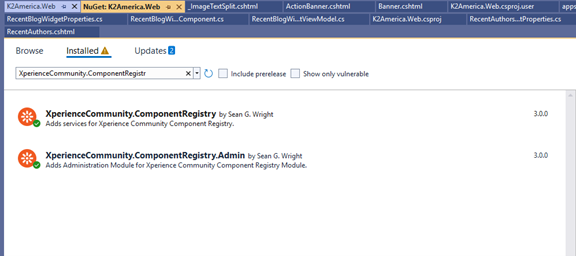
Step 1: Install Required Packages
Recommended (Admin UI + Registry Services):
dotnet add package XperienceCommunity.ComponentRegistry.Admin
Registry Services:
dotnet add package XperienceCommunity.ComponentRegistry
.png?language=en "Picture1 (2)")
Step 2: Register Services in Program.cs
Add the following:
builder.Services.AddComponentRegistry();
builder.Services.AddComponentRegistryMcp(builder.Configuration);
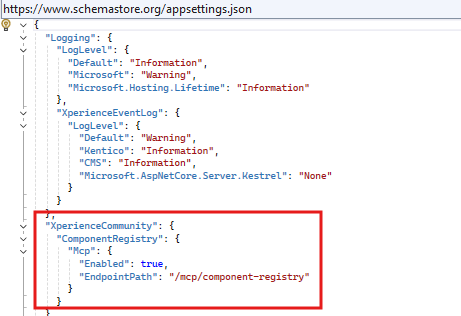
Step 3: Enable MCP in appsettings.json
{
"XperienceCommunity": {
"ComponentRegistry": {
"Mcp": {
"Enabled": true,
"EndpointPath": "/mcp/component-registry"
}
}
}
}
Step 4: Map the MCP Endpoint
Add in Program.cs:
app.MapComponentRegistryMcp(app.Configuration);
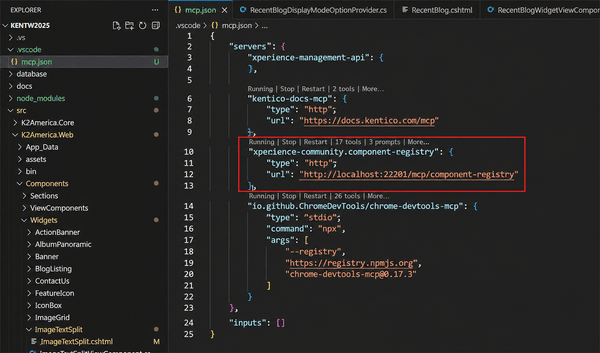
Step 5: Configure VS Code MCP
Create .vscode/mcp.json and add:
{
"servers": {
"kentico-docs-mcp": {
"type": "http",
"url": "https://docs.kentico.com/mcp"
},
"xperience-community.component-registry": {
"type": "http",
"url": "http://localhost:53856/mcp/component-registry"
}
}
}
Advantages of Using Component Registry MCP
🧠 1. Cross Channel Component Intelligence
By combining the Component Registry library with other MCP servers (e.g., documentation MCP, browser/devtools MCP), AI agents can:
- Identify where Xperience components are used across all website channels
- Navigate directly to the live pages using them
- Understand rendering context automatically
This eliminates manual searching across environments.
🕵️ 2. Automated UI & Accessibility Audits
AI agents can:
- Open the actual page
- Locate the specific component
- Capture screenshots
- Detect UI inconsistencies
- Identify accessibility issues (contrast, missing alt text, semantic structure)
And in many cases, propose or even generate fixes.
🔎 3. Usage Aware API Change Risk Analysis
Because agents have access to component usage metadata, they can:
- Check whether specific component properties are actively used
- Identify how widely a component is deployed
- Estimate risk before modifying APIs or properties
- Warn developers about breaking changes
This dramatically improves refactoring safety.
Real World Use Cases
🔍 Investigating Text Rendering Issues
A marketer reports that widget text looks incorrect on the live site.
AI agent can:
- Locate where the component is used
- Open the live page
- Capture a screenshot
- Compare with Page Builder preview
- Identify CSS or rendering conflicts
Example Prompt –
HeroImageWidgetViewComponent.cs
I was told there are issues reading the text of this widget when it's displayed to website visitors but it looks fine to me in the Page Builder find out where this component is used with the component registry mcp server then get the page URL and visit it using the chrome dev tools mcp server then take a screenshot of just the widget and include it in the chat component usage data to identify where the widget is on the page identify what might be the issue and propose a fix if needed use the Kentico docs mcp server to understand APIs/features don't make any changes yet.

 by Sukhveer Kaur