
Step by Step Setup Guide for VS Code with GitHub Copilot
Introduction
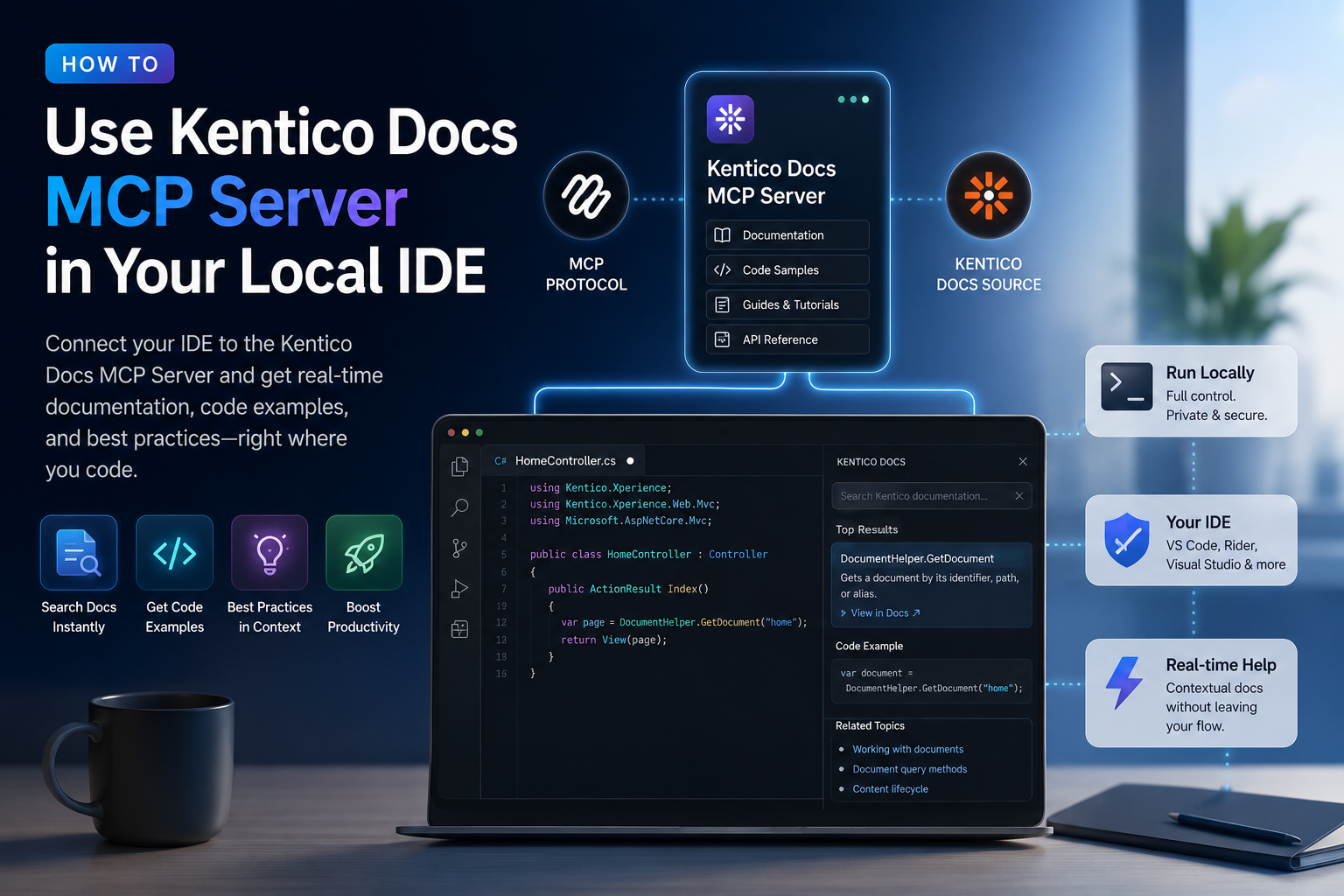
This guide explains how to configure and use the Kentico Documentation MCP Server in your local development environment using Visual Studio Code and GitHub Copilot Agent Mode.
Prerequisites
- Visual Studio Code installed
- GitHub Copilot extension installed and activated
- GitHub Copilot Chat extension installed
- Kentico Docs MCP Server installed
Step 1: Verify MCP Server Installation
Ensure that the Kentico Docs MCP Server is properly installed and available within your VS Code environment.
Step 2: Open GitHub Copilot Chat
Open Visual Studio Code and launch GitHub Copilot Chat from the sidebar.
Switch to Agent Mode to enable tool usage and MCP server integration.
Step 3: Configure MCP Tools
Inside the Copilot Chat window, follow these steps:
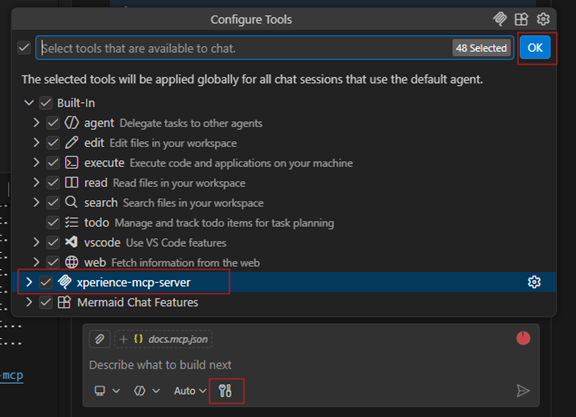
- Select 'Configure Tools' in the bottom right corner of the chat window (next to the Send button).
- In the list of available tools, locate 'MCP Server:kentico-docs-mcp'.
- Check the box next to 'MCP Server:kentico-docs-mcp'.
- Click the 'OK' button above the list to confirm.
Step 4: Create kentico.docs.mcp.json File
Inside your project folder, navigate to the .vscode directory. If it does not exist, create a new folder named '.vscode'.
Inside the .vscode folder, create a new file named:
kentico.docs.mcp.json
Add the following configuration inside the file:
{
"mcpServers": {
"remote-example": {
"command": "npx",
"args": [
"mcp-remote",
"https://docs.kentico.com/mcp"
]
}
}
}
This configuration connects your local IDE to the official Kentico Documentation MCP server.
Step 5: Select kentico.docs.mcp.json in Chat
From the Explorer panel in VS Code, click on 'kentico.docs.mcp.json' to activate the documentation MCP configuration.
Now start chatting in Copilot Agent Mode. The Kentico Docs MCP Server is ready and connected.
Step 6: Start Using Kentico Docs MCP Server
Once enabled, the Kentico Docs MCP Server is ready to use.
You can now ask GitHub Copilot questions related to Kentico documentation, APIs, content modeling, widgets, and development best practices.
Example prompts:
- Explain how content types work in Xperience by Kentico.
- How do I create a widget in Kentico?
- Show best practices for content modeling.
Benefits of Using Kentico Docs MCP Server
- Access official Kentico documentation directly inside your IDE.
- Reduce time spent searching external documentation.
- Improve code accuracy with documentation aware AIassistance.
- Increase development productivity.
Conclusion
By enabling the Kentico Docs MCP Server in VS Code, you integrate official Kentico documentation directly into GitHub Copilot’s AI workflow. This creates a smarter, faster, and more efficient development experience.

 by Sukhveer Kaur